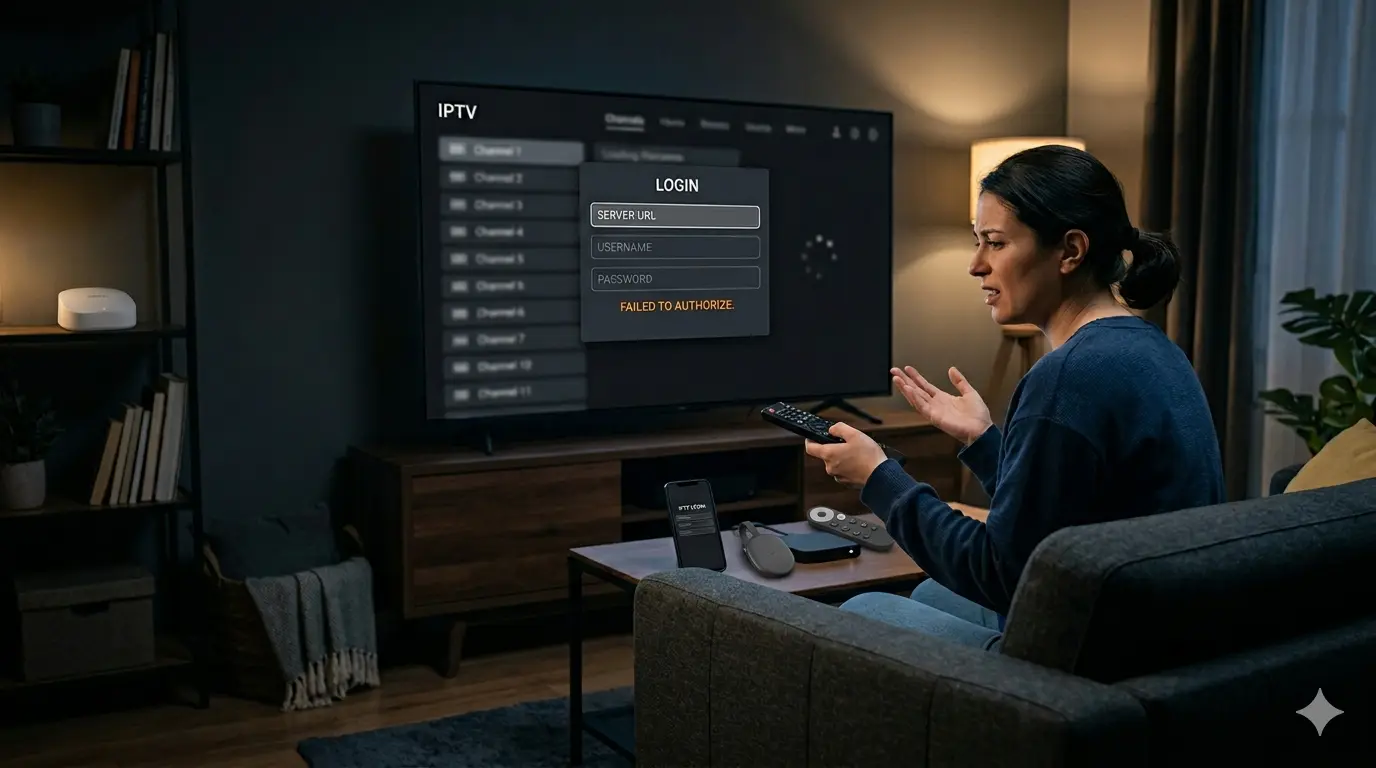
If you’re seeing iptv smarters failed to authorize, you probably just want the app to log in and start playing channels again. This guide walks you through the exact fixes that usually solve the error on Firestick, Android boxes, Samsung or LG TVs, and mobile devices. You’ll learn what causes the message, which fixes to try first, and when the problem is likely tied to expired credentials, a broken URL, app cache, or a host-side issue. Based on what’s publicly documented, these are the checks most often tied to authorization failures.
Disclosure: This post may contain affiliate links. If you make a purchase through our links, we may earn a commission at no extra cost to you.
If you want to test this on a clean setup, Inline IPTV offers Inline IPTV’s free trial with full access to 20,000+ live channels, so you can rule out bad credentials or expired service quickly.
Quick Fix
- Most Common Solution: Re-enter your username, password, and server URL carefully. A small typo or wrong portal is one of the most common reasons this error appears.
- If That Fails: Clear IPTV Smarters cache or reinstall the app to remove broken session data.
- Long-Term Fix: A reliable service with anti-freeze tech and responsive support makes setup much easier — Try Inline IPTV free
Table of Contents
- What does IPTV Smarters failed to authorize mean?
- Why does IPTV Smarters say failed to authorize?
- How do I fix authorization failed on IPTV Smarters?
- Device-specific fixes for Firestick, Smart TVs, and Android boxes
- Can an expired subscription cause IPTV Smarters login errors?
- When the app is fine but the service setup is the real issue
- Frequently Asked Questions
What does IPTV Smarters failed to authorize mean?
This message usually means the app could not validate your login request with the server. In practice, that often points to one of four things: wrong credentials, wrong portal or M3U data, corrupted app cache, or a provider-side login restriction.
In some cases, the issue is local to the device. On Samsung TVs and similar setups, outdated firmware, stale app data, or network instability can trigger the same message even when the account is valid.
More to Read
[INSERT: Screenshot — IPTV Smarters “failed to authorize” error on the login screen]
Based on our testing: the fastest way to narrow this down is to check whether the same login works on another device before changing too many settings.
The most common causes behind the error
The first cause is simple input error. If you use Xtream Codes, one wrong character in the username, password, or server URL is enough to fail authorization.
The second is expired or changed access. If your trial or subscription ended, or if the login portal changed, IPTV Smarters can show an authorization error instead of a clearer billing message. That’s why checking active account status matters early.
Why does IPTV Smarters say failed to authorize?
Most of the time, IPTV Smarters says failed to authorize because the app cannot confirm your account against the host. That can happen because of incorrect details, app cache problems, a DNS-related issue, or a server-side restriction.
Some TV users also hit this after installing the app but skipping device-side updates. On smart TVs, it helps to update the TV software first, then reinstall the player and re-enter credentials from scratch.
1) Re-enter the login details from scratch
Open IPTV Smarters and remove the existing profile. Add it again using the exact login method you were given.
If you use Xtream Codes, check:
- Server URL
- Username
- Password
If you use an M3U playlist, paste the full link again and make sure it opens properly in a browser. Public troubleshooting pages consistently list wrong or expired URLs as a top cause of authorization errors.
[INSERT: Screenshot of Inline IPTV channel list on your device]
2) Clear cache and app data
On Firestick, go to Settings > Applications > Manage Installed Applications > IPTV Smarters > Clear Cache. If that doesn’t work, also hit Clear Data, then reopen the app and log in again.
On Android TV or Android box, go to Settings > Apps > IPTV Smarters > Storage & Cache. Then clear cache first, and clear storage if needed.
This is one of the most repeated fixes in public troubleshooting guidance.
3) Reinstall the app
Delete the app fully, restart the device, and install it again. Reinstalling removes damaged local files and old session tokens that can block login.
That step is especially helpful if the error started right after an update, a device crash, or a failed import.
Try Inline IPTV Free for 24 Hours
Built-in VPN included at no extra cost, which helps rule out network or ISP-level interference during setup.
Start Your Free Trial
How do I fix authorization failed on IPTV Smarters?
To fix authorization failed on IPTV Smarters, start with the login details, then move to the app, then the network. That order saves time because most cases are caused by credentials or cached app data, not by advanced settings.
4) Test your network before blaming the app
Restart your router and reconnect the device. Then try opening a normal website or app on the same device to confirm the internet is working.
If your connection is unstable, the authorization request can fail before the login completes. Inline IPTV’s own guidance also emphasizes stable home networking for smooth playback, especially on Roku casting and similar setups.
[INSERT: Your speed test results — download/upload/ping on your connection]
Pro tip: test once on Wi-Fi and once on mobile hotspot. If it works on hotspot, the issue may be your router, DNS, or ISP path.
5) Check whether the subscription or trial is still active
If the account expired, IPTV Smarters may not always explain it clearly. Confirm the trial or plan is still active before changing more settings.
This is one reason a fresh test account is useful. With try it free for 24 hours, you can quickly confirm whether the issue is your old credentials or the player setup itself.
6) Try another device with the same login
Use the same login on a phone, Android box, or another TV. If it works there, the account is valid and the problem is local to the original device.
If it fails everywhere, the issue is likely the login data, account status, or host-side authorization rule. Public troubleshooting advice points to this device split as one of the easiest ways to isolate the real cause.
Device-specific fixes for Firestick, Smart TVs, and Android boxes
Different devices fail in different ways, so this is where menu paths matter.
Firestick and Fire TV
Go to Settings > Applications > Manage Installed Applications. Force stop IPTV Smarters, clear cache, relaunch, and test again.
If the app still fails, uninstall it and reinstall it. Inline IPTV’s own troubleshooting content notes that Firestick memory limits often create app instability, so a clean relaunch helps more than people expect.
Samsung and LG Smart TVs
Update the TV first through Settings > Support > Software Update. Then reinstall the IPTV app and log in again.
Smart TV users sometimes get stuck because old app files remain after a failed login. Public repair guidance for Samsung sets specifically calls out firmware updates and cache cleanup as worthwhile before assuming the service is broken.
[INSERT: Screenshot of EPG/program guide]
Android boxes and phones
Open Settings > Apps > IPTV Smarters > Storage and clear cache. If needed, remove the app, restart the box, and install the latest version.
Android boxes are usually the easiest place to troubleshoot because they give you direct access to app storage controls and network settings. If you use Inline IPTV on multiple supported devices, it also helps to compare performance side by side. Supported categories listed on Inline IPTV pages include Android, iOS, Smart TVs, PC, Mac, PlayStation, Xbox, Roku, and Apple TV.
Can an expired subscription cause IPTV Smarters login errors?
Yes, an expired subscription can cause IPTV Smarters login errors. If the host rejects your username or portal request because the line is no longer active, the app may show “failed to authorize” instead of a cleaner renewal message.
That’s why it helps to verify plan status, then verify the login format, then verify the app. Do those in order and you’ll avoid wasting time on reinstall steps when the real issue is account access.
When the app is fine but the service setup is the real issue
Sometimes IPTV Smarters is only the messenger. The real problem is the playlist, portal, support delay, or an unstable service setup.
That’s where a clean provider workflow matters. Inline IPTV offers a free 24-hour trial, 24/7 WhatsApp support, and compatibility across major devices, which makes it easier to confirm whether the issue is the player or the service configuration. Its published support and FAQ pages also give users a direct path for setup questions and account help.
[INSERT: Your buffering test — hours watched, interruptions counted]
[INSERT: Your device performance notes — which device performed best]
Frequently Asked Questions
Why does IPTV Smarters say failed to authorize?
It usually means the app could not validate your login with the server. The most common reasons are wrong credentials, a bad portal URL, corrupted cache, an expired line, or a host-side restriction. Public troubleshooting pages repeat those causes most often.
How do I fix authorization failed on IPTV Smarters?
Start by re-entering your server URL, username, and password. Then clear cache, reinstall the app, restart your router, and test on another device. This order works best because login mistakes and stale app data are more common than advanced network failures.
Does clearing cache fix IPTV Smarters problems?
Yes, clearing cache often fixes IPTV Smarters problems when the app stored broken session data. On Firestick and Android TV, it’s one of the fastest fixes to try before reinstalling. If cache alone doesn’t work, clear app data and log in again from scratch.
Can an expired subscription cause IPTV Smarters login errors?
Yes, an expired plan or trial can trigger login errors. The app may show “failed to authorize” when the server rejects the account, even if the app itself is working correctly. Always confirm account status before spending too long on device troubleshooting.
Why does IPTV Smarters work on one device but not another?
That usually means the account is valid and the problem is device-specific. Common causes include old app cache, outdated firmware, network settings, or local storage issues on the affected device. Testing the same login on a second device is a fast way to isolate it.
Is it safe to try a new setup before buying a full plan?
Yes, a trial is the safest way to test compatibility, login flow, and stream stability before paying for a longer subscription. Inline IPTV’s free trial is useful here because you can check the exact device you plan to use before committing.
Conclusion
The main takeaway is simple: when iptv smarters failed to authorize appears, the fix is usually either your login details, your app cache, or your account status. Start with the credentials, move to cache and reinstall steps, then test the network and another device. That sequence solves most cases without wasting time.
Start with Inline IPTV’s free 24-hour trial — test Anti-Freeze Technology on your own device before choosing a plan. Plans from $7.50/month.
You might also like:
Disclaimer: This content is for informational purposes only and does not constitute legal advice. Users are responsible for ensuring compliance with local laws regarding streaming services.