


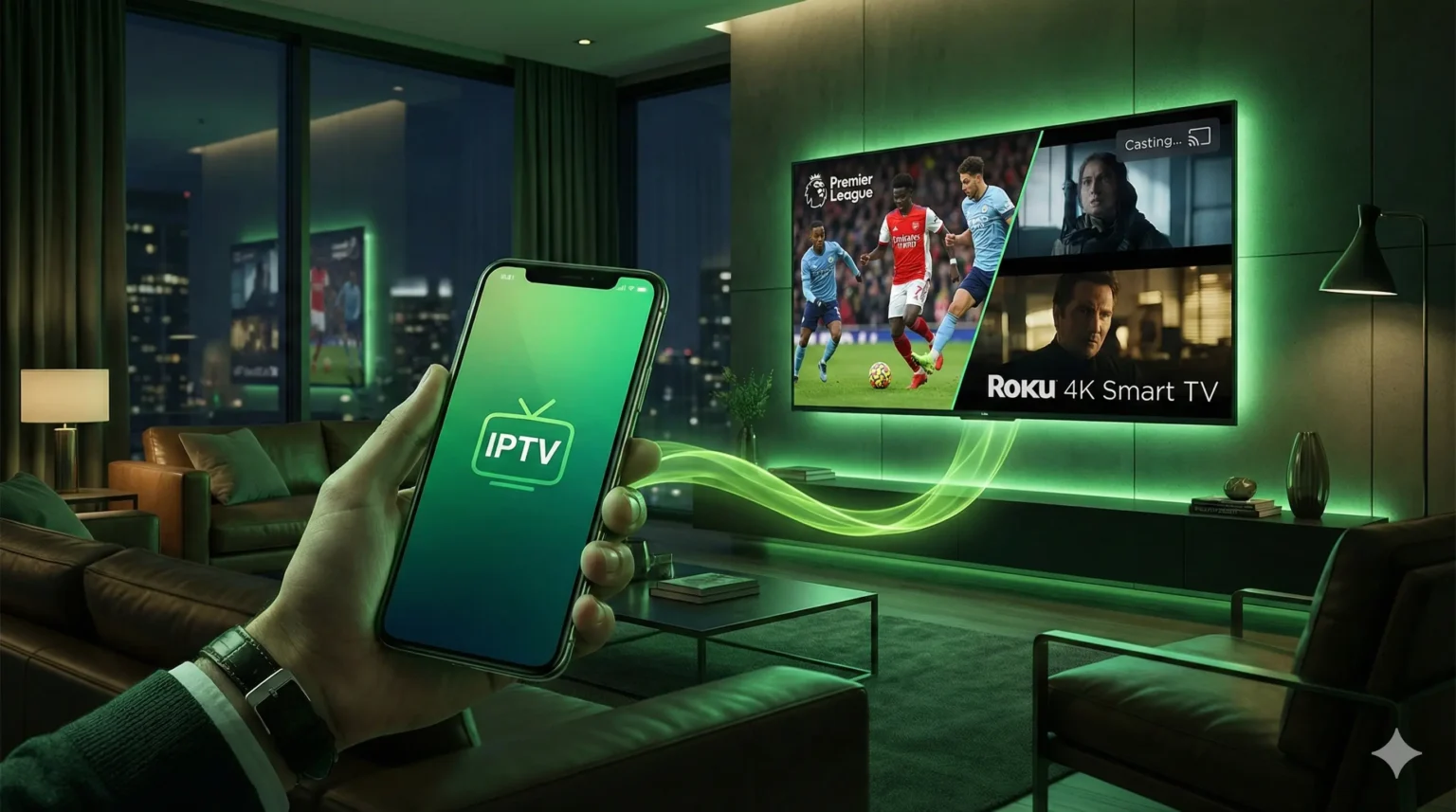
If you own a Roku device or a TCL Roku TV, you know how user-friendly the interface is for standard apps like Netflix or Hulu. However, finding a reliable solution for iptv for roku tv can feel like hitting a brick wall. Unlike Android or Fire TV devices, Roku uses a closed operating system that doesn’t natively support most popular IPTV player apps. This leaves many users frustrated, searching for a way to unlock thousands of live channels and on-demand movies on their big screen.
The good news is that watching IPTV on Roku is completely possible in 2026—you just need to know the right workarounds. Whether you are a cord-cutter looking to save money, a sports fanatic wanting international games, or an expat missing TV from home, there are specific methods to bridge the gap between your IPTV subscription and your Roku TV. It requires a few extra steps compared to other devices, but the result—crisp 4K streaming and endless entertainment—is worth it.
In this guide, we will walk you through exactly how to set up iptv for roku tv using the most stable methods available today. We will also cover what to look for in a provider, why stream stability is non-negotiable, and how services like Inline IPTV are optimized to ensure smooth playback even on restrictive devices like Roku. By the end of this article, you’ll have a clear checklist to get your favorite channels running in minutes.
Quick summary
- Roku is restrictive: Roku does not allow standard IPTV apps (like IPTV Smarters) to be downloaded directly from its channel store anymore.
- Workarounds exist: The best methods involve “casting” content from a mobile phone (using Web Video Caster) or using screen mirroring.
- Quality matters: Because casting relies on your network, you need a high-quality, stable provider like Inline IPTV to prevent buffering.
- Setup is safe: These methods are safe for your device and do not require “jailbreaking” or voiding warranties.
- The best alternative: If you find Roku too difficult, connecting a Fire Stick to your Roku TV’s HDMI port is often the ultimate solution.
Table of contents
- What IPTV for Roku TV really means in 2026
- How to choose the right service for IPTV for Roku TV
- Why Inline IPTV is a strong choice for IPTV for Roku TV
- How to get started with IPTV for Roku TV on your devices
- How to avoid buffering and get smooth 4K streaming
- A quick note on legality and safe IPTV use
- How IPTV for Roku TV fits into everyday life
- FAQ about IPTV for Roku TV and Inline IPTV
- Final thoughts on IPTV for Roku TV
What IPTV for Roku TV really means in 2026
When we talk about iptv for roku tv, we are discussing the method of streaming live television channels via the internet (Internet Protocol Television) specifically on the Roku operating system. In the past, Roku allowed “private channels” where users could install unauthorized apps via a code. However, Roku has since closed this loophole to comply with copyright regulations, removing almost all native IPTV player apps from their store.
In 2026, getting IPTV on Roku means using “Client-Side” solutions. Instead of the app running 100% on the TV, you often use a “middleman” app on your smartphone (Android or iOS) to browse the channels, which then sends the video feed to the Roku device. While this sounds technical, it is actually quite seamless once set up. It allows you to access the same vast library of live sports, news, and movies that Android users enjoy, effectively turning your Roku into a global cable box.
How to choose the right service for IPTV for Roku TV
Since Roku relies heavily on network casting or mirroring, the quality of the incoming stream is even more critical than on other devices. If the source stream is weak, casting it will result in constant stuttering. Here is what you should look for when choosing a provider:
- Stream Stability and Uptime: This is the most important factor. You need a provider that maintains stable servers. If the server lags, your casting connection will drop frequently.
- M3U Link Availability: To use the casting method, your provider must supply a valid M3U URL (playlist link). Proprietary providers that lock you into their own branded app won’t work on Roku.
- HD and 4K Quality: Roku devices are excellent at upscaling content. A provider that offers true 1080p and 4K streams will look incredible on a Roku TV.
- Electronic Program Guide (EPG): Good providers offer an EPG link so you can see what is playing. This is essential for planning your viewing.
- Responsive Support: Setup on Roku can be tricky. You want a provider with a support team that understands how to help with Web Video Caster or mirroring issues.
Many cheap, low-quality IPTV sellers offer thousands of channels that are mostly offline or buffer constantly. On a Roku, these flaws are magnified. A premium service like Inline IPTV focuses on quality over quantity, ensuring that the bandwidth is sufficient to handle the extra hop required for casting to Roku.


Why Inline IPTV is a strong choice for IPTV for Roku TV
Inline IPTV has positioned itself as a top-tier provider for users who value reliability. While we support all devices, our streams are particularly well-suited for the iptv for roku tv workaround methods due to their high bitrate and stability.
Here is why Roku users prefer us:
- High-Performance Servers: Our servers are optimized to reduce latency, which is crucial when you are casting a stream from a phone to a TV.
- Clean M3U Playlists: We provide organized, standard M3U playlists that are compatible with all major casting apps like Web Video Caster or GSE IPTV.
- Massive VOD Library: Enjoy access to over 60,000 movies and series, many in 4K, which look stunning on Roku’s display hardware.
- Transparent Refund Policy: We are confident in our service. If you cannot get it working on your Roku setup, we have a clear refund policy to protect your purchase.
- Helpful Support: Our team knows the “Roku workaround” inside and out and can guide you through the process if you get stuck.
If you are ready to stop struggling with poor-quality streams, we invite you to Request your free IPTV trial and test the quality on your Roku device today.
How to get started with IPTV for Roku TV on your devices
Setting up iptv for roku tv is different from other platforms. Since there is no “Downloader” app or Google Play Store on Roku, we must use alternative methods. Below are the three most effective ways to watch.
Method 1: Web Video Caster (The Best Method)
This is the most reliable way to watch IPTV on Roku in 2026. You use an app on your phone to browse channels, and it “casts” the video to your Roku.
- Download on Phone: Install the app “Web Video Caster” (Web Video Cast) on your Android or iOS smartphone.
- Install Receiver on Roku: On your Roku TV, go to the Channel Store, search for “Web Video Caster Receiver,” and install it.
- Open the App: Open the app on your phone. Tap the three lines in the top corner and select “IPTV.”
- Add Playlist: Click the
+icon to add a playlist. Paste the M3U link provided by Inline IPTV into the address field. Name it “Inline IPTV”. - Connect: Tap the “Cast” icon (usually top right) on your phone app and select your Roku device from the list.
- Play: Browse the channel list on your phone. Tap a channel name. The app will ask where to play it—select your Roku.
- Watch: The video should now launch on your TV screen. Your phone acts as the remote.
Method 2: Screen Mirroring (Android/Windows)
If you don’t want to use a casting app, you can simply mirror your screen. This requires a strong Wi-Fi connection.
- Enable on Roku: Go to Roku Settings > System > Screen Mirroring. Set “Screen mirroring mode” to “Always allow” or “Prompt.”
- Prepare Android/PC: Install a standard IPTV player (like IPTV Smarters or XCIPTV) on your Android phone or Windows laptop.
- Login: Enter your Inline IPTV login details in the player app on your phone/PC.
- Connect (Android): Pull down the quick settings menu on Android and tap “Smart View,” “Cast,” or “Screen Mirroring.” Select your Roku.
- Connect (Windows): Press
Windows Key + Kand select your Roku from the list. - Watch: Whatever you see on your phone/PC screen will appear on the TV. Turn your phone horizontally for full screen.
Method 3: The “Stick” Alternative (Highly Recommended)
If the above methods feel too complicated or clunky, the absolute best way to experience iptv for roku tv is to bypass the Roku OS entirely.
- Buy a Fire Stick: Purchase an Amazon Fire TV Stick 4K (they are very affordable).
- Plug it In: Plug the Fire Stick into an open HDMI port on your Roku TV.
- Switch Input: Use your Roku remote to switch the input to that HDMI port.
- Install Native Apps: Now you have an Android-based system running on your Roku TV hardware. You can easily install Downloader and IPTV Smarters directly.
- Enjoy: This gives you the best of both worlds—your Roku TV’s screen quality with an operating system that actually allows IPTV apps.
How to avoid buffering and get smooth 4K streaming
Buffering can ruin a live sports game or a movie climax. Because Roku relies on Wi-Fi for most of these methods (especially casting), your network setup is crucial. Here are tips to optimize your experience:
- Use the 5GHz Wi-Fi Band: Ensure both your Roku and your mobile phone are connected to the 5GHz Wi-Fi band, not the slower 2.4GHz band. This doubles or triples your speed.
- Close Background Apps: If you are casting from a phone, ensure you aren’t downloading heavy files in the background.
- Restart Your Router: A fresh restart of your modem and router clears memory and can improve connection paths to our servers.
- Check Your Speed: For 4K streaming, you generally need at least 25 Mbps of stable download speed.
- Wired is Better: If your Roku TV has an Ethernet port, use a cable instead of Wi-Fi. This eliminates wireless interference.
- Update Firmware: Check
Settings > System > System updateon your Roku to ensure you have the latest software, which often includes better video codecs.
If you continue to face issues, check our frequent IPTV questions page for advanced troubleshooting steps or contact Inline IPTV support.
A quick note on legality and safe IPTV use
The world of streaming can sometimes be confusing regarding legality. It is important to know that IPTV itself is a technology and is perfectly legal. However, accessing copyrighted content without a license can be illegal depending on your country’s laws.
Using “free” M3U lists found on the internet often exposes you to security risks, including malware or data harvesting. These free lists are also notoriously unreliable, often shutting down in the middle of a broadcast.
Inline IPTV operates with a focus on user privacy and security. We encourage users to respect local laws and streaming regulations. We also prioritize the protection of your personal data. You can read more about how we handle data in our privacy policy. By choosing a paid, reputable provider, you are opting for a safer, ad-free, and more secure viewing environment compared to the “wild west” of free streaming sites.
How IPTV for Roku TV fits into everyday life
The Sports Fanatic: Imagine it’s Sunday, and the game you want to watch isn’t broadcast on your local cable provider. With iptv for roku tv, you can cast the specific sports channel from your phone to your 65-inch Roku TV in seconds, catching every play in HD without expensive cable packages.
The Expat Family: Living abroad can be tough when you miss your home country’s news and entertainment. A Roku TV set up with Inline IPTV allows you to instantly switch between local channels and channels from back home, helping your family stay connected to their culture and language.
The Minimalist Cord-Cutter: You want to cancel an expensive $150 cable bill but keep your live TV. By using the Web Video Caster method on your existing Roku, you save money without adding new hardware clutter to your living room.
FAQ about IPTV for Roku TV and Inline IPTV
Can I download IPTV Smarters directly on Roku?
No, unfortunately, IPTV Smarters is not available in the official Roku Channel Store. You must use the “Web Video Caster” method or screen mirroring to display content on your Roku, or use an external device like a Fire Stick.
Do I need a VPN for IPTV on Roku?
While not strictly required for Inline IPTV (since our service is discreet and secure), many users prefer using a VPN for privacy. If you use the casting method, you would install the VPN on your phone (the device sending the stream) or on your router, as Roku does not support VPN apps natively.
Is 4K streaming supported on Roku?
Yes! If you have a 4K-capable Roku device or TV and a 4K subscription from Inline IPTV, you can stream in Ultra HD. Just ensure your internet speed is sufficient (25 Mbps+).
What happens if the stream freezes while casting?
If the stream freezes, first try pausing and playing again on the phone app. If that fails, stop the casting and reconnect. Often, the issue is a temporary Wi-Fi drop between the phone and the TV.
Can I get a free trial to test this on my Roku?
Yes, absolutely. We highly recommend testing the service first to ensure you are comfortable with the setup process. You can start a free 24 hour trial right now.
Final thoughts on IPTV for Roku TV
While Roku presents some unique challenges for IPTV users compared to Android or Fire TV, it is far from impossible. By utilizing tools like Web Video Caster or screen mirroring, you can unlock the full potential of iptv for roku tv and enjoy thousands of live channels on your preferred screen.
The key to a frustration-free experience is combining these setup methods with a high-quality provider. No amount of troubleshooting will fix a bad server. Inline IPTV offers the stability, support, and channel variety you need to make the extra setup steps worth it.
Don’t settle for limited cable packages. Unlock the true power of your Roku TV today.
Try Inline IPTV free and experience the difference in quality and reliability for yourself.

